
How to Connect Bluetooth Headphones to Apple TV: A Comprehensive Guide
Introduction
Enjoying content on Apple TV can be a full sensory experience, but sometimes, to maximize privacy or minimize household noise, connecting Bluetooth headphones is ideal. This guide provides a simple walkthrough to help you set up your Bluetooth headphones with Apple TV effortlessly.
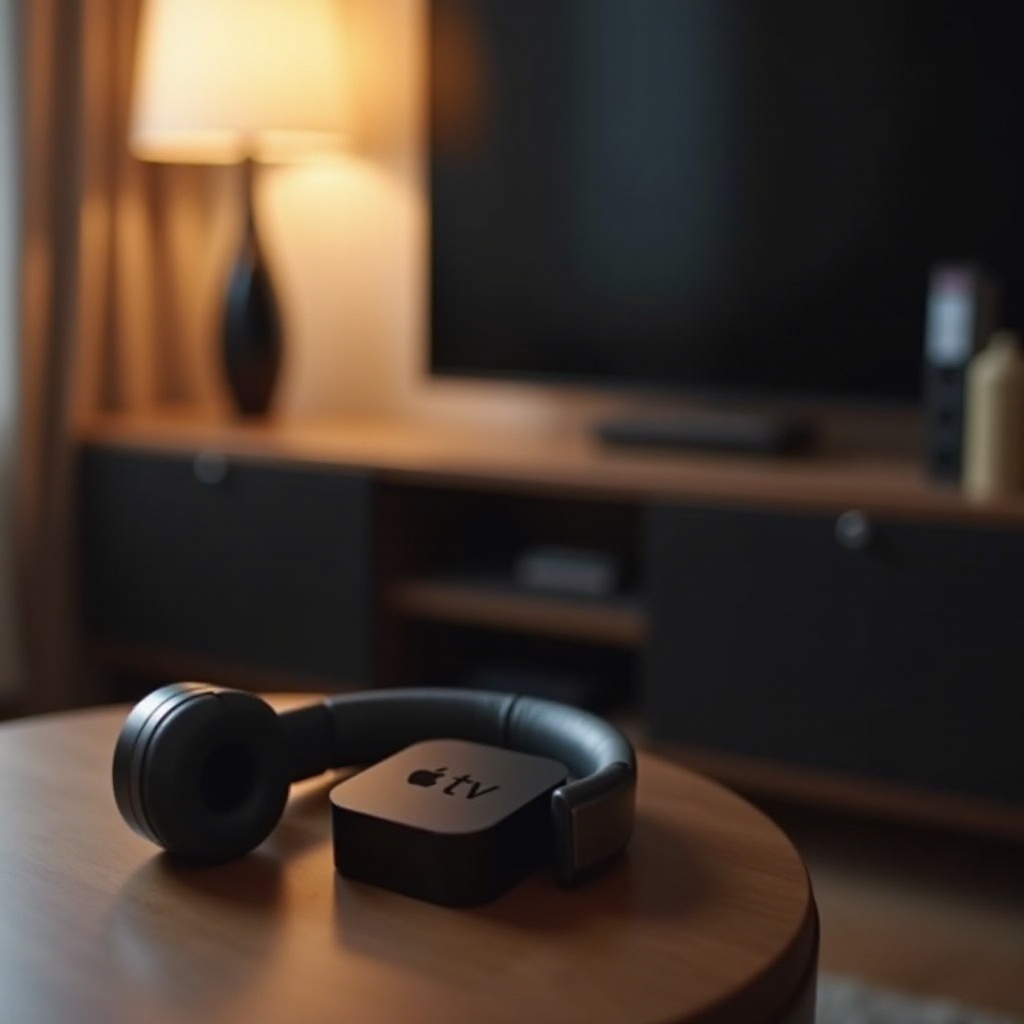
Understanding Compatibility
Before diving in, verify your devices’ compatibility to ensure a smooth setup.
Supported Apple TV Models
Apple TV models released from the 4th generation onward, including the Apple TV 4K, are equipped to support Bluetooth headphone connectivity. This ensures you can enjoy an uninterrupted, wire-free audio experience in your living space.
Compatible Bluetooth Headphones
Most modern Bluetooth headphones are compatible with Apple TV as long as they adhere to the A2DP Bluetooth profile. Renowned brands like Sony, Bose, and Apple’s own AirPods are known for their excellent integration and superior sound.
Understanding the devices you can use prepares you for the next step, which involves getting your equipment ready.
Preparing Your Devices
Setting the stage for successful pairing involves a few preliminary steps.
Charging and Powering On
- Complete charging of your Bluetooth headphones ensures they don’t disconnect mid-setup.
- Verify both the Apple TV and headphones are powered on and ready for configuration.
Updating Software and Firmware
- Check for the latest Apple TV software by navigating to ‘Settings > System > Software Update’ and selecting ‘Update Software’ if updates are available.
- Similarly, confirm your headphones have the latest firmware through the manufacturer’s app if one is available.
With both pieces of the puzzle in place, you’re now ready to proceed with the actual connection process.
Connecting Bluetooth Headphones to Apple TV
Follow these steps to pair your headphones efficiently.
Navigating Apple TV Settings
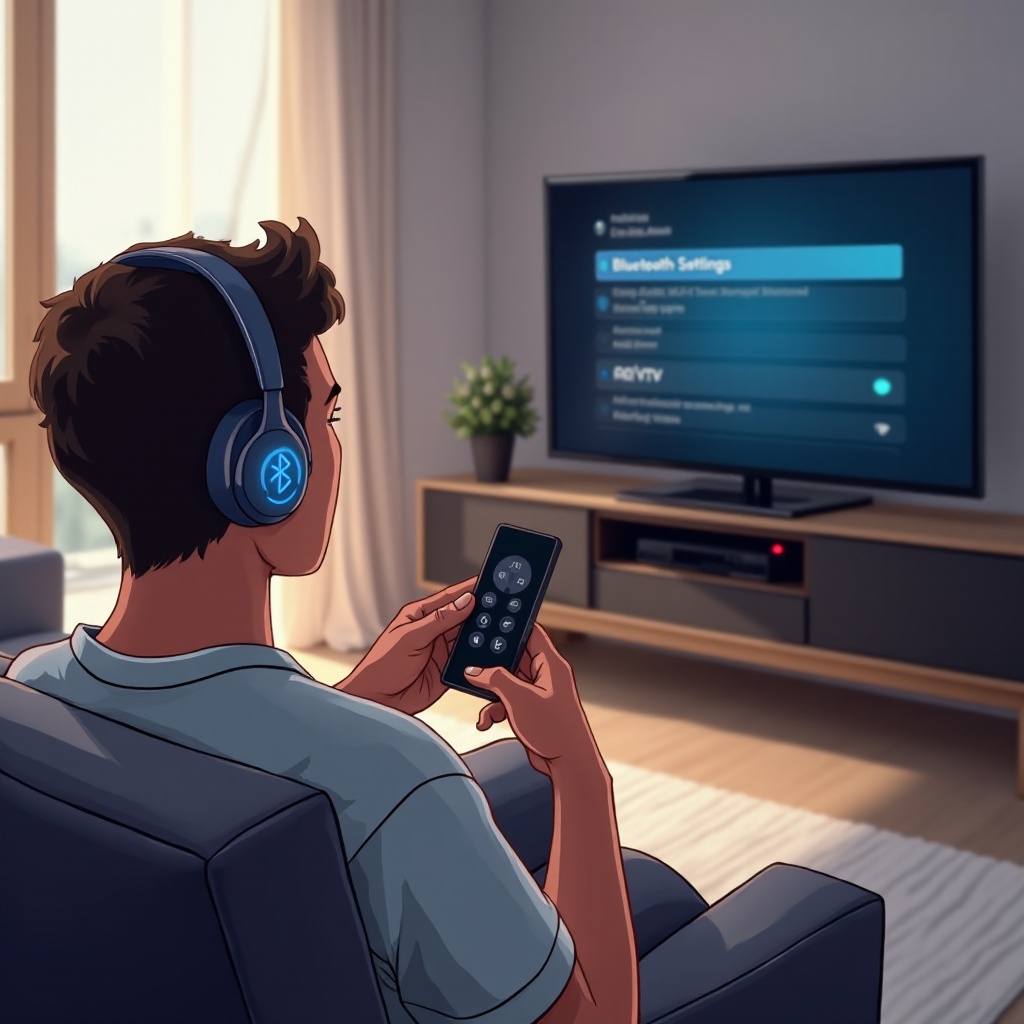
- Open ‘Settings’ on your Apple TV screen.
- Select ‘Remotes and Devices’ followed by ‘Bluetooth’ to initiate the search for available devices.
Enabling Pairing Mode on Headphones
- Refer to your specific headphone instructions to activate pairing mode—usually done by holding the power button until an indicator light blinks.
- Keep the headphones close to your Apple TV during this process to ensure successful detection.
Pairing and Connecting
- In the Bluetooth menu on Apple TV, spot your headphones in the list of discoverable devices.
- Select your headphones, await connection confirmation, and voilà! You’re ready for a private, immersive audio session.
Post-connection adjustments ensure ongoing quality and personal preference tailoring.
Optimizing Audio Settings
Fine-tuning audio settings enhances the quality and individual comfort levels.
Adjusting Volume and Balance
- Use your Apple TV remote to control the headphones’ volume or make use of on-device controls where available.
- If applicable, customize audio balance to suit your listening preference, which is useful for long periods of use.
Exploring Advanced Audio Features
- Activate spatial audio if supported by your headphones for a cinema-like experience.
- Utilize any noise-cancelling settings to reduce ambient distractions for a focused viewing experience.
At times, connectivity issues can arise. Here’s how to handle common problems efficiently.
Troubleshooting Connection Issues
Resolve typical connectivity issues to maintain a seamless listening experience.
Common Problems and Quick Fixes
- If your headphones aren’t visible during setup, ensure they’re in discovery mode and restart both the Apple TV and headphones.
- Experience lag? Reset the connection by toggling Bluetooth off and on through the Apple TV settings.
Improving Signal Stability
- For the best connection, position your Apple TV and headphones close together to avoid signal disruption.
- Eliminate any potential electronic interference by maintaining a clear signal path between your devices.
Once resolved, additional tips can further enhance usability and convenience.
Advanced Tips and Tricks
Explore extra features for a better user experience.
Using Siri for Voice Control
- Siri adds hands-free convenience, letting you control playback and adjust the volume using voice commands alone.
Managing Multiple Bluetooth Devices
- Easily switch between devices by disconnecting the current setup and pairing a new device following the outlined steps.
You’re now set up for maximum enjoyment of your Apple TV’s audio capabilities.
Conclusion
By connecting Bluetooth headphones to your Apple TV, you unleash a new dimension of private and immersive home entertainment. The steps outlined ensure you’ll achieve a smooth setup and optimize both device and audio performance.
Frequently Asked Questions
Can I connect multiple Bluetooth headphones to my Apple TV?
Currently, Apple TV supports connection with only one Bluetooth headphone at a time.
Why is there audio lag when using Bluetooth headphones?
Audio lag can be due to wireless connectivity issues. Minimize electronic interference and ensure your device has a stable Bluetooth connection.
How do I reset Bluetooth settings on Apple TV?
To reset, go to ‘Settings > Remotes and Devices > Bluetooth’ and toggle Bluetooth off and then on, resetting the connections efficiently.