
How to Fix Google Calendar Not Showing Up on iPhone
Introduction
Google Calendar is an essential tool for organizing schedules, appointments, and events, especially for iPhone users who need seamless cross-device accessibility. However, users often encounter the frustrating issue of Google Calendar not appearing on their iPhones, disrupting daily productivity. This guide provides clear and effective solutions to help you troubleshoot and resolve these syncing issues, ensuring your calendar is always accessible whenever you need it.
Understanding the Google Calendar Issue on iPhone
When your Google Calendar doesn’t show up on your iPhone, it can lead to confusion and missed appointments. This issue usually arises from syncing problems, account misconfigurations, or app permission settings on your device. Identifying the root cause is crucial to finding a solution, and understanding whether the problem lies within your iPhone settings or Google account settings can significantly expedite the troubleshooting process.
Preliminary Checks Before Troubleshooting
Before diving into complex troubleshooting, it’s essential to perform a few preliminary checks to address potential simple issues:
- Ensure your internet connection is stable: Google Calendar depends on an internet connection. Confirm that you are connected to a reliable Wi-Fi network or cellular data service.
- Verify Google account settings: Check your Google account to ensure correct login credentials, and confirm the account is active and not experiencing any restrictions.
- Check device software updates: Make sure your iPhone’s operating system is updated to the latest version. Go to Settings > General > Software Update and install any available updates.
These basic checks can rule out straightforward obstacles to syncing and pave the way for addressing more technical problems.
Effective Solutions to Resolve the Sync Issue
If the preliminary checks are in place and the issue persists, consider the following solutions to resolve syncing challenges:
- Re-add your Google account:
- Open Settings on your iPhone.
- Select ‘Accounts & Passwords’ and choose your Google account.
- Remove the account and then re-add it.
-
Make sure ‘Calendars’ is enabled in the sync settings.
-
Adjust sync settings:
- Launch the Google Calendar app.
- Tap the ‘Menu’ > ‘Settings’ > Select your desired calendar.
-
Ensure the calendar is set to sync by toggling the switch, and verify the sync interval settings.
-
Check calendar visibility settings:
- Open the Google Calendar app.
- Tap ‘Menu’ > ‘Settings’ and select the calendar you wish to display.
- Ensure the calendar is checked to make it visible.
Following these steps can ensure your Google Calendar is correctly configured to sync, reducing the likelihood of further disruption.
Advanced Troubleshooting Techniques
If basic solutions don’t solve the problem, consider these advanced approaches:
-
Check app permissions and privacy settings: Ensure the Google Calendar app has the necessary permissions. Navigate to Settings > Privacy > Calendars and verify permissions are granted.
-
Resetting network settings: Occasionally, network issues can affect sync functions. Resetting network settings can help. Go to Settings > General > Reset > Reset Network Settings. Be aware that this will erase saved Wi-Fi networks, requiring you to reconnect.
-
Reinstall the Google Calendar app: Try uninstalling the Google Calendar app and then reinstalling it from the App Store. This can fix issues related to app corruption or error.
Advanced techniques may take additional effort but often yield long-term solutions to eliminate synchronization issues once and for all.
Alternative Solutions to Consider
If conventional methods don’t work, exploring alternative solutions might be beneficial:
-
Using third-party calendar apps: Consider downloading a reputable calendar app from the App Store that integrates seamlessly with Google services if native solutions fail you.
-
Sync through iCloud as a backup: To enhance reliability, sync Google Calendar events through iCloud. This acts as both a backup strategy and an alternative viewing option.
These alternatives provide ongoing access to your calendars while addressing persistent visibility concerns, ensuring continuity in your planning needs.
Conclusion
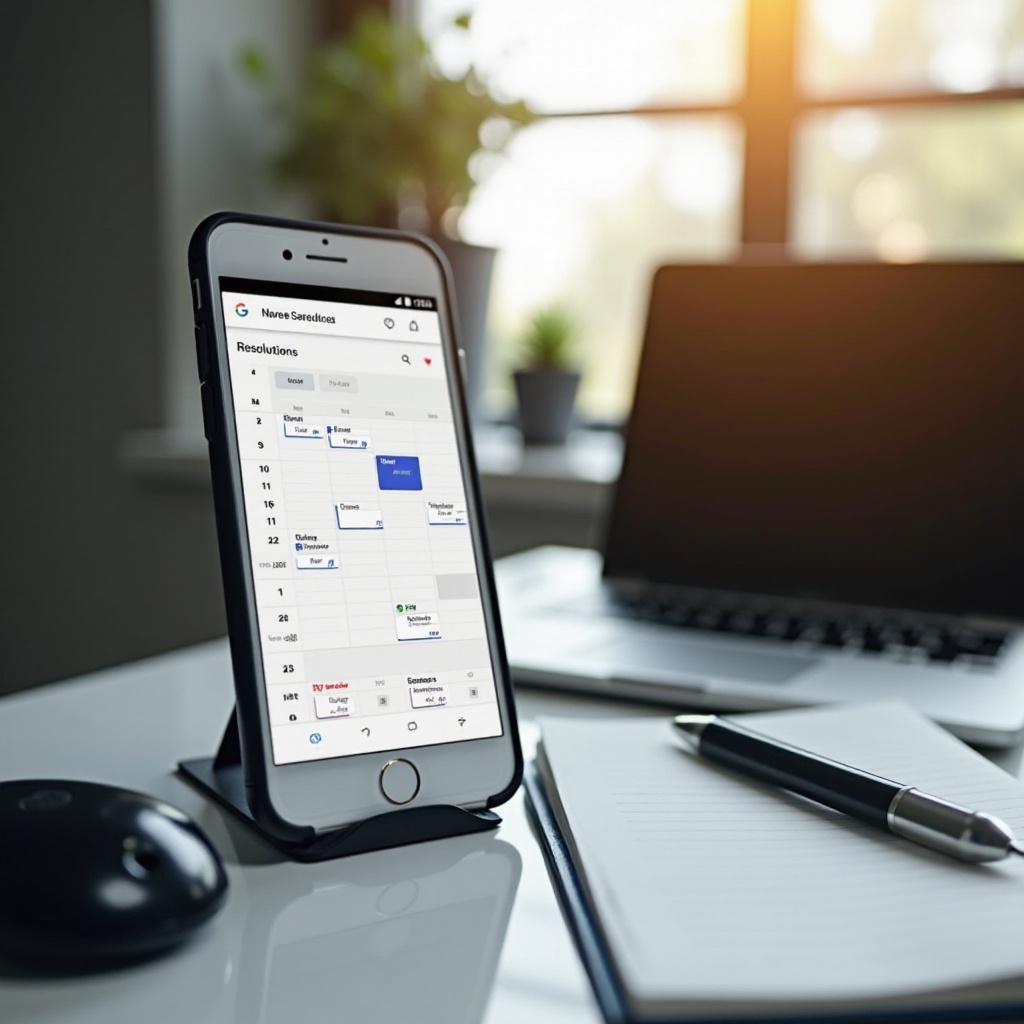
Restoring your Google Calendar view on an iPhone may require a mixture of actions—from performing preliminary checks to deploying advanced troubleshooting techniques and exploring alternative solutions. By following the steps in this guide, you can efficiently address and resolve the issue of your Google Calendar not showing up, ensuring sustained visibility and productivity. Keep your digital planner accessible at your fingertips to enhance your daily efficiency.
Frequently Asked Questions
Why isn’t my Google Calendar syncing with my iPhone?
This issue can be due to incorrect account settings, app permission restrictions, or outdated software. Follow our guide for effective solutions.
How can I make sure my calendars are always visible on my iPhone?
Ensure calendar sync is enabled in both Google and iPhone settings, and regularly check that your account credentials and permissions are set correctly.
Is there a reliable alternative to Google Calendar on iPhone?
Yes, several third-party apps like Outlook Calendar or Fantastical offer robust alternatives, each with unique features to suit your needs.