
How to Rearrange iPad Apps: A Step-by-Step Guide for 2024
Introduction
Rearranging apps on your iPad enhances productivity by allowing easy access to frequently used applications. An organized home screen means less time searching for what you need, making your device an efficient tool in daily life. This guide provides all the steps and tips necessary to reorganize your iPad successfully and elevate your productivity in 2024.

Understanding Your iPad Layout
Before you begin rearranging, familiarize yourself with your iPad’s layout. Knowing how the grid system works, and what options you have can greatly aid in planning an ideal arrangement.
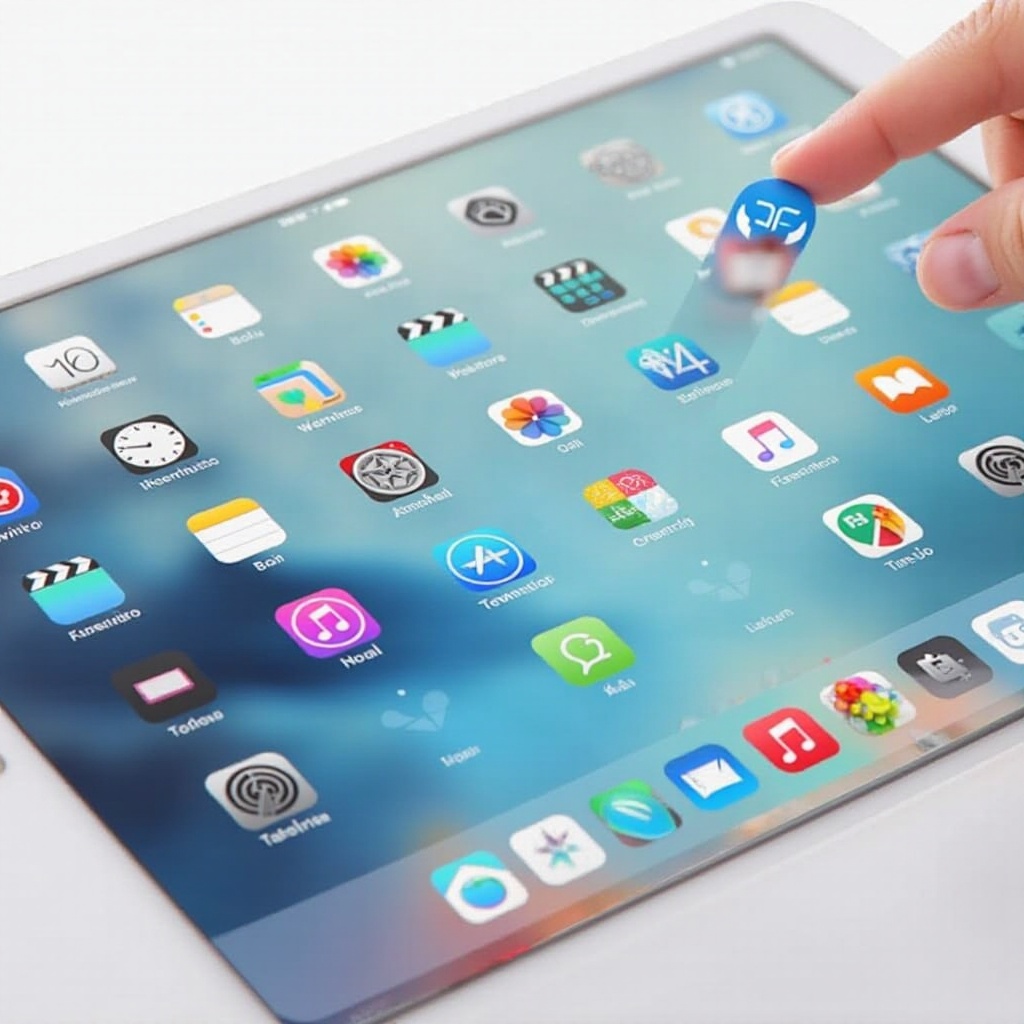
- The Basics of iPad Home Screen: The iPad displays apps in a grid layout, with a dock at the bottom for key apps. Understanding this basic setup is crucial for effective organization.
- Importance of App Arrangement: Strategic app placement enhances usability, saving time and reducing digital clutter.
Creating a personalized home screen starts with understanding these basics. Once you’re familiar with these components, you’re ready to prepare for rearrangement.
Preparing to Rearrange Apps
Preparation ensures the process goes smoothly and protects your data. Here are essential steps to take before rearranging apps:
- Backing Up Your Device: Use iCloud or your computer to back up your iPad. This precaution prevents data loss if something unexpected occurs during the reorganization.
- Evaluating Your Current App Setup: Identify which apps are essential and which can be archived or deleted. This assessment will guide an efficient new layout.
Establishing a backup is crucial not only for security but also for peace of mind. With your apps assessed and backup completed, you’re ready to start the rearrangement process.
Step-by-Step Guide to Rearrange iPad Apps
These straightforward steps will help you rearrange your apps efficiently:
- Entering Jiggle Mode: Tap and hold an app until all icons start to jiggle. This action allows you to move apps as needed.
- Moving Apps Across Screens: Drag apps to the edge of the screen to move them to a different page. Hold briefly to initiate the page transition.
- Creating and Naming Folders: Overlap one app on another to create a folder. Tap the folder title to rename it for easy identification.
Optimizing your layout with folders and proper placement streamlines usage and improves your workflow.
Advanced App Organization Tips
To make the most of your iPad, employ these advanced organization tricks:
- Using the Dock for Frequent Apps: Keep frequently used apps in the dock. This facilitates quick access and allows extra space on the home screen.
- Grouping Apps by Usage: Arrange apps in folders by category such as ‘Work’, ‘Entertainment’, or ‘Utilities’. This method enhances visibility and workflow.
These tactics will help maintain order and accessibility, enriching user experience significantly.
Utilizing iOS Features for Better Organization
Make full use of iOS’s built-in features to complement your app arrangement:
- Making the Most of Widgets: Add widgets to your home screen for instant information without opening apps. They are perfect for checking the weather or calendar events at a glance.
- Exploring the App Library: Use the App Library for less frequently used apps. It clusters apps automatically, offering a cleaner home screen without losing access.
Incorporating these features enriches device interaction and supports a minimalist, efficient setup.
Troubleshooting Common Issues
If you encounter problems while rearranging, these solutions might help:
- What to Do When an App Won’t Move: Ensure you’re in jiggle mode. Restart your iPad if the app doesn’t move.
- Fixing App Arrangement Bugs: Check for iOS updates to fix persistent software glitches; updates often solve usability issues.
Addressing these common problems ensures your device remains functional and efficient post-reorganization.
Conclusion
Organizing your iPad is more than cosmetic; it significantly affects how you use your device daily. A precise app layout tailored to your needs means quicker access and less time hunting for what you need, making your iPad a powerful tool for work and leisure.
Frequently Asked Questions
How can I quickly access my favorite apps?
Place your favorite apps in the dock or use widgets on your home screen for instant access.
Why do some apps not move when I try to rearrange them?
Ensure you are in jiggle mode. If issues persist, restart your device or check for an iOS update.
Is there a way to reset my home screen layout?
Yes, you can reset your home screen layout by navigating to Settings > General > Reset > Reset Home Screen Layout.