
Guide to Sharing Events on iPhone Calendar: Easy Steps
Effortless Event Sharing on iPhone Calendar: A Comprehensive Guide
Sharing events on your iPhone calendar can truly enhance how you organize your daily life, whether personal or professional. With Apple’s intuitive interface, the calendar app on your iPhone allows for seamless coordination and time management. In this guide, we’ll delve into the process of event sharing, providing you with the knowledge to simplify your scheduling tasks.
Introduction
The built-in iPhone calendar is more than just a date-keeping tool, it’s a full-fledged scheduling assistant right in your pocket. Its integration with iCloud ensures your events are not limited to a single device. By sharing calendar events, you can effortlessly coordinate with others, ensuring everyone is on the same page. Whether it’s a work meeting or a family event, being able to share your calendar events is an invaluable feature.
The Basics of iPhone Calendar
Understanding how your iPhone calendar operates sets the foundation for efficient event sharing. This knowledge will aid you in optimizing your scheduling.
Key Features of iPhone Calendar
Your calendar is equipped with a variety of features that help you stay organized. You can choose from different views, such as daily, weekly, or monthly, depending on what suits your needs best. Additionally, it allows you to set up color-coded events, making it easy to distinguish between different types of appointments at a glance.
Understanding iCloud Integration
iCloud ensures that your calendar events sync across all of your Apple devices. This seamless synchronization keeps your schedule up-to-date wherever you are. By confirming your iCloud settings, you can make sure all changes to your calendar are reflected consistently. This feature is vital when sharing events because it ensures everyone involved receives the most current information.
How to Share Events on iPhone
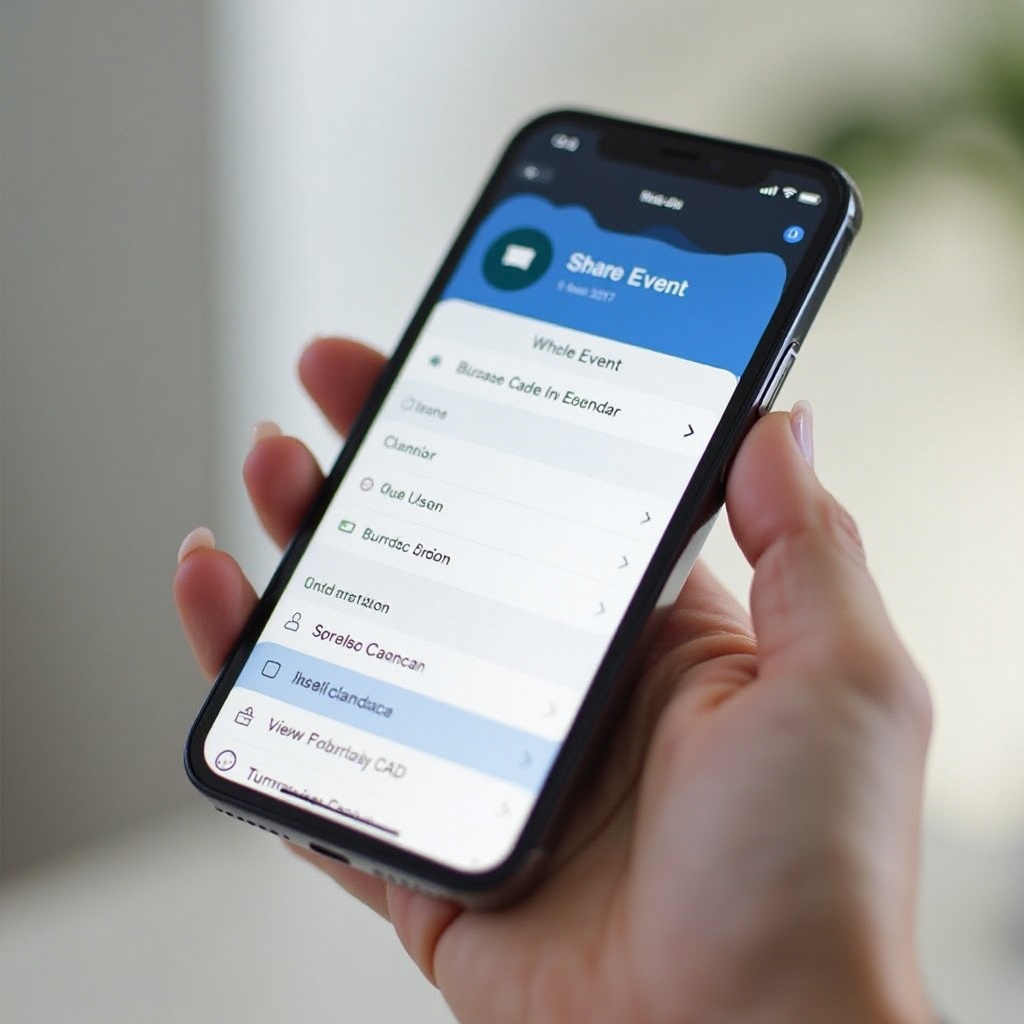
With an understanding of the basic features, sharing your events becomes a straightforward task. Here’s how to do it step-by-step:
- Creating an Event: Open the Calendar app, tap the ‘+’ icon to create a new event, and input essential details such as the event time, location, and participants.
- Adding Details and Invitees: Enter the invitees’ email addresses or select them from your contacts. Providing a detailed description helps clarify the event for all participants.
- Managing Permissions and Notifications: Determine whether invitees can make changes to the event. Adjust notification settings to remind invitees and yourself of the event in advance.
Following these steps will ensure that your event is set up correctly, creating a seamless experience for all involved. With notifications in place, your invitees will be alerted, keeping everyone informed and organized.
Troubleshooting Common Issues
Despite the straightforward process, you may occasionally encounter issues when sharing events. Here’s how to tackle them effectively:
Event Not Syncing Across Devices
Make sure iCloud Calendar is enabled on all your devices. Also, ensure that all devices share the same Apple ID. This setting is crucial for keeping your calendar synchronized and up-to-date.
Invitees Not Receiving Notifications
Verify the accuracy of the invitees’ email addresses. Suggest that invitees check their email settings and look for calendar invites. If issues persist, advise a device restart or a force refresh of the calendar app. These simple actions often resolve common notification problems and ensure smooth communication.
Advanced Tips for Effective Calendar Sharing
Once you master the basics, take your calendar management to the next level with these advanced strategies:
Customizing Alerts and Notifications
Customize alerts to ensure they align with your schedule. Determine whether you prefer notifications several days before an event or perhaps just a few hours prior for optimal preparation. This customization allows you to balance reminders with your daily workflow effectively.
Integrating Third-Party Calendars
Consider integrating third-party calendar applications like Google Calendar. This integration can provide extra features and flexibility, especially when you coordinate across different platforms professionally or personally. Synchronizing multiple calendars enhances organization and minimizes scheduling conflicts.
Enhancing Your Calendar Experience
Expand your calendar’s capabilities with additional tips to streamline your day-to-day scheduling:
Utilizing Siri for Schedule Management
Enable Siri to handle some of the workload. By issuing simple voice commands like ‘Hey Siri, set up a meeting with Alex tomorrow at 10 AM,’ you can add events without lifting a finger. Siri can alert you of upcoming events and even help manage travel time considerations by checking traffic conditions.
Tips for Efficient Calendar Usage
Make a habit of reviewing your calendar to ensure it remains reflective of your priorities. Occasionally declutter by removing past or canceled events, and apply color codes to differentiate between types of events like work, personal, or family. Organized calendars facilitate clarity and ensure important commitments aren’t overlooked.
Conclusion
Mastering the ability to share events on your iPhone calendar significantly enhances scheduling and communication capabilities. By following the steps and tips outlined here, you can optimize your iPhone’s calendar functionality, ensuring your schedule operates efficiently for you and your participants. Leverage these features to maintain a well-organized and stress-free lifestyle.
Frequently Asked Questions
How can I ensure my events sync across all devices?
Ensure iCloud is enabled for your calendar, and verify that all devices use the same Apple ID. This setup will facilitate real-time syncing.
Can I share events with non-iPhone users?
Yes, you can. They will receive an email invitation and can view the event through a link, even if they don’t use an iPhone.
What should I do if calendar notifications are not working?
Check your notification settings both on your device and within the calendar app. Ensure Do Not Disturb mode is off, as it can silence notifications.