
The Essential Guide to Choosing an External CD Drive for Your Mac Laptop
Introduction
Apple’s Mac laptops come equipped with cutting-edge technology, yet the demand for external CD drives remains. From accessing old media to installing legacy software and securing backups, an external CD drive is an invaluable tool. This comprehensive guide will delve into the reasons for owning one and provide insights on selecting the best drive for your needs.
Understanding the Need for an External CD Drive
Mac laptops have advanced, shedding some features to remain sleek and portable. However, this evolution has left out built-in CD drives, posing a challenge for users who rely on discs for software, multimedia, and data archiving. Owning an external CD drive becomes essential in bridging this gap, ensuring your data remains within reach and secure from digital loss.
Common Uses for External Drives with Mac Laptops
- Software Installation: Many programs still come on CDs, essential for users needing robust applications.
- Music and Media: Enjoy your favorite albums and movies stored on discs.
- Data Backup and Archival: Physically back up crucial files.
- Access Older Data: Retrieve cherished memories and essential documents.
Digital Trends and the Role of Physical Media
While digital advancement offers cloud storage and streaming, physical media’s importance can’t be understated. It provides an offline, secure backup and a comforting tangibility that can’t be replicated digitally. With the right external CD drive, you can easily harness both the benefits of newer technologies and the reliability of old-school media.
Key Features to Consider in an External CD Drive
Choosing the right external CD drive involves evaluating compatibility, speed, and connectivity. Addressing these aspects ensures a smooth experience with your Mac laptop, allowing you to transition seamlessly between digital and physical media.
Compatibility with Modern MacBook Models
Verify that the drive is compliant with macOS and the specific versions supported by your laptop. Some drives might need extra drivers, so it’s vital to check for macOS compatibility in the specifications before purchasing.
Speed and Performance Factors
Select drives that ensure swift read/write speeds. Devices that support USB 3.0 or higher will generally offer superior performance, particularly for those who frequently burn discs or transfer data.
Types of Connectivity: USB-C vs. USB-A
Many of the latest Mac models come with USB-C ports. Therefore, opt for drives with built-in USB-C capability or ensure you have the suitable adapter if your drive uses USB-A. Choosing the right connectivity enhances ease of use and avoids compatibility issues.
Top External CD Drives for Mac Laptops in 2024
Reviewing top models gives critical insights into available choices. Here are three recommended options:
Model 1: Features and Benefits
- High-speed performance through USB 3.0, making data transfers quicker.
- Ultra-slim, lightweight build designed for easy transport.
- Reliable support for all MacBook models, facilitated by USB-C connectivity.
Model 2: Features and Benefits
- Supports a broad range of disc formats, ensuring versatility in use.
- Integrated cable storage ensures tidiness and ease.
- Produced by a trustworthy brand with a broad warranty coverage, enhancing consumer confidence.
Model 3: Features and Benefits
- Features a minimalist, durable aluminum casing, aligning with Mac’s sleek aesthetic.
- Plug-and-play convenience, requiring no additional drivers or software installations.
- Dual connectivity with both USB-A and USB-C, ensuring flexibility in use with different devices.
Setting Up and Using Your External CD Drive
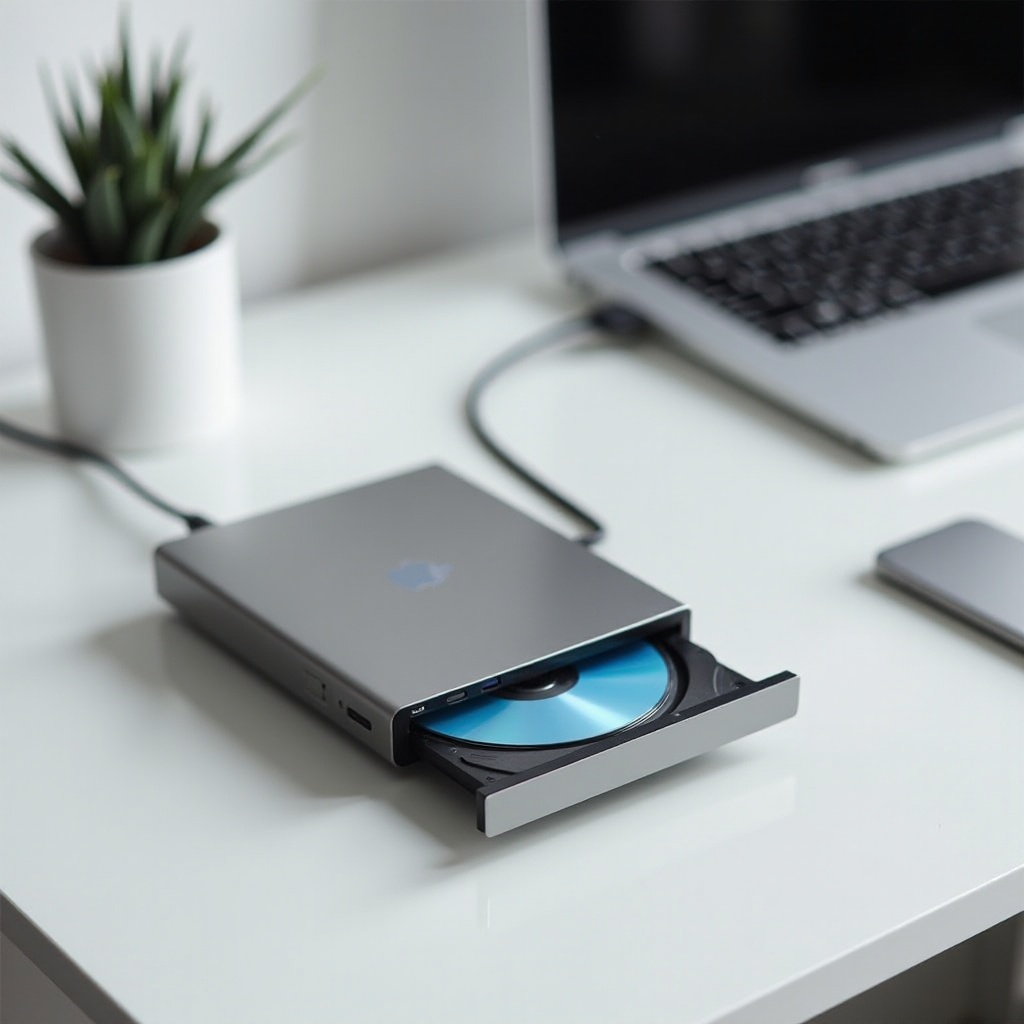
Once you’ve chosen the ideal drive, setting it up and using it effectively is quite straightforward.
Quick Setup Guide for Beginners
- Connect the drive to your Mac by using the suitable port.
- Let your Mac automatically detect the drive without interference.
- Verify functionality by inserting a CD and accessing its contents via Finder.
Tips for Optimal Performance
- Regularly update your macOS to leverage better support and compatibility with your drive.
- Use high-quality CDs to maintain durability and performance.
Troubleshooting Common Issues
Encountering issues with your external CD drive is occasionally inevitable. Fortunately, there’s a resolution for most common problems.
Drive Not Recognized by Mac: Solutions
- Inspect both cables and ports to ensure there are no connectivity issues causing disruptions.
- Restart your Mac, often encouraging it to refresh device detection.
- Experiment with a different USB port or drive to diagnose the core issue.
Resolving Read and Write Errors
- Gently clean both the CD and drive lens using a soft, lint-free cloth.
- Test an alternative CD to determine if the problem lies within the media or the drive.
- Mitigate excessive drive vibration to prevent disruption during operation.
Maintenance Tips for Longevity
Taking care of your drive ensures it lasts longer and maintains consistent performance levels.
Cleaning and Storage Practices
- Store your drive in a cool, dry location when not active, protecting it from excessive dust and moisture.
- Regularly wipe the drive’s exterior and lens gently with a microfiber cloth to preserve its pristine condition.
Software and Firmware Updates
- Routinely visit the manufacturer’s website to check for firmware updates. These updates can enhance device functionality and ensure long-term reliability.
Conclusion
Investing in an effective external CD drive for your Mac laptop opens numerous possibilities. By choosing a compatible, high-performance model, you can manage your data and multimedia efficiently. Equipped with this guide, you’re prepared to make an informed choice, ensuring the drive complements your Mac and keeps your digital and physical worlds connected.
Frequently Asked Questions
Do I need an adapter for my external CD drive?
Most newer Macs feature USB-C ports, necessitating an adapter if your drive is USB-A compatible.
Can I use my external CD drive with other devices?
Yes, many drives are compatible with various operating systems, including Windows and Linux.
How do I enhance the speed of my external CD drive?
Use USB 3.0 or higher connections, clean the CDs and drive regularly for optimal performance.