
Troubleshooting Your iPhone: Solutions When It Won’t Charge After an Update
Introduction
Updating your iPhone can often bring exciting new features and improvements. Yet, some users find themselves facing a frustrating issue: their iPhone won’t charge after an update. This problem can disrupt daily schedules and cause concern over your device’s overall health. Fortunately, there are several effective solutions for this issue, and understanding the root causes can significantly help in resolving it efficiently.
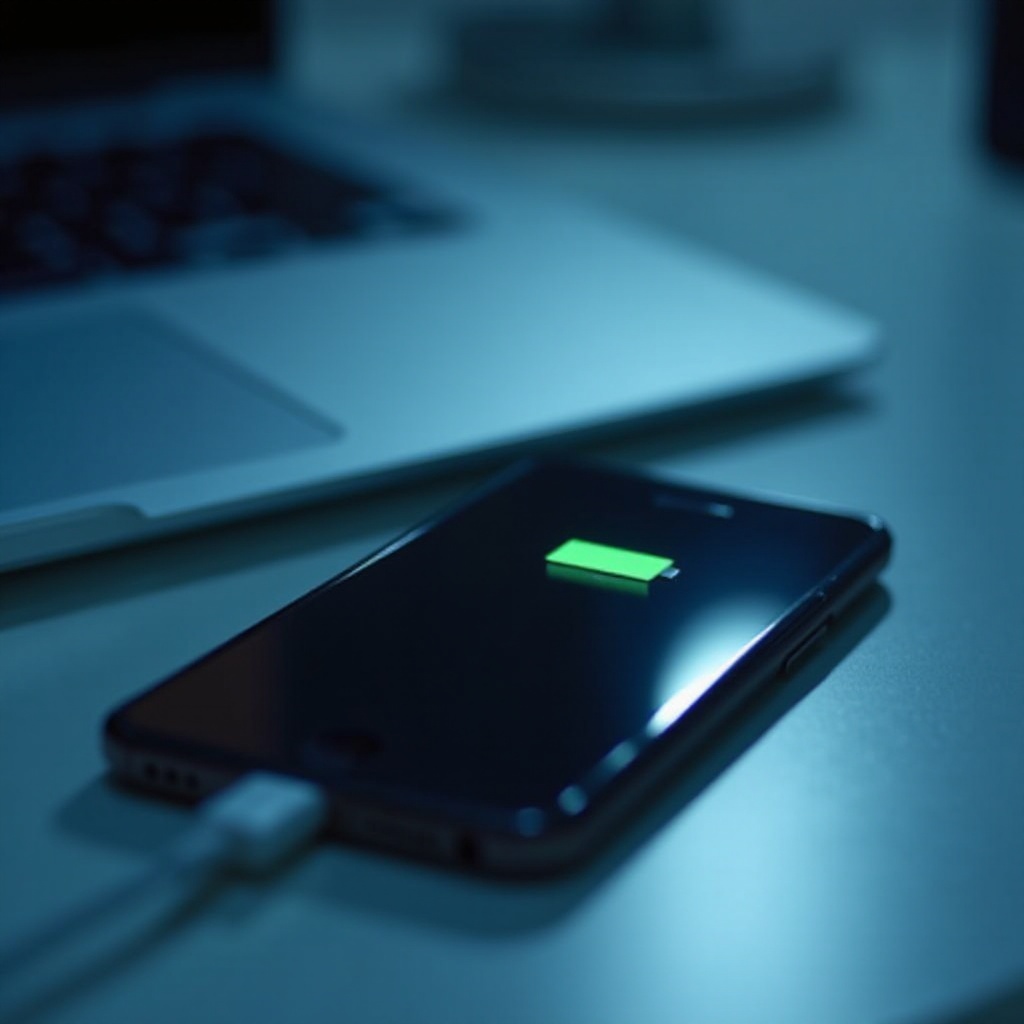
Common Reasons for Charging Issues Post-Update
Several factors could cause an iPhone not to charge following an update. Identifying these common issues can help you apply the right solutions.
-
Software Glitches and Their Impact: Updates are designed to improve performance but can sometimes introduce software glitches that disrupt normal charging operations. It’s rare, but these glitches can prevent the phone from recognizing its charger.
-
Faulty Accessories and Connections: Even trusted accessories can have compatibility issues post-update. Cables and adapters that worked flawlessly before might suddenly stop functioning.
-
Battery Health Considerations: An update may exacerbate pre-existing battery issues, making them more apparent. If battery health wasn’t optimal beforehand, the update might highlight these problems.
Before moving forward, understanding these common causes sets the foundation for addressing the issue effectively. Once you know the potential cause, taking logical steps towards resolution becomes attainable.
Initial Troubleshooting Steps
Starting with straightforward inspections can often solve charging issues. Begin with these steps:
-
Inspect Cables and Adapters: Examine your charging accessories for visible damage such as frays or kinks. Ensure you’re using certified cables and adapters, as uncertified ones can lead to compatibility problems.
-
Verify Power Sources and Outlets: Power sources can be a common problem. Test your iPhone at different outlets or USB ports to ensure they provide adequate supply.
-
Clean the Charging Port Effectively: Dust and debris can block connectivity. Use a soft brush or toothpick carefully to remove any visible dust from the charging port, avoiding metal items that might damage internal parts.
These initial checks often resolve simple hardware-related problems. If the problem persists, it can indicate a need for more in-depth software solutions.
Software Solutions and Fixes
With hardware ruled out, delve into these software-centric solutions to resolve charging issues:
-
Restarting and Soft Reset Methods: Start with a simple restart; if this doesn’t resolve the issue, perform a soft reset by holding the power and volume down buttons simultaneously until the Apple logo appears.
-
Check for Additional iOS Updates: Sometimes a newly released update requires a subsequent patch. Navigate to Settings > General > Software Update. Download and install any updates you find.
-
Resetting Settings Without Data Loss: Unusual settings configurations might create issues. Consider resetting all settings through Settings > General > Reset > Reset All Settings. This action will not erase personal data but will reset custom settings.
Software fixes frequently solve charging issues, but if they don’t, seeking out more comprehensive troubleshooting techniques is the next logical step.
Advanced Troubleshooting Techniques
Should basic solutions fall short, deeper investigation is essential for diagnosing more complex issues:
-
Utilize Recovery and DFU Mode: Engage Recovery Mode by connecting your iPhone to a computer and accessing iTunes or Finder. For a thorough reset, use DFU Mode, which reloads software but should be handled cautiously.
-
Evaluate Battery Health via Settings: Monitor battery health by accessing Settings > Battery > Battery Health. A low maximum capacity indicates potential battery replacement needs.
-
Restoring the iPhone with iTunes: Restoring through iTunes can resolve software entanglements. Back up your data beforehand, as this process erases your phone’s content.
Advanced methods should eliminate software barriers; however, if trouble continues, the underlying problem might be hardware-related.

When to Seek Professional Assistance
If troubleshooting hasn’t solved your charging issues, it might be time to consult professionals:
-
Recognizing Hardware Failures: Persistent charging errors, a non-responsive phone, or a swollen battery signal the need for expert intervention.
-
Setting Up an Appointment with Apple Support: Visiting an Apple Store or authorized service provider allows for reliable diagnosis and repair of hardware faults.
Knowing when to consult experts is essential when personal solutions reach their limits. Prevention remains key against recurring problems.
Preventive Measures for Future Updates
To prevent future iPhone charging issues, consider these strategies:
-
Maintain Backups Regularly: Enabling iCloud or regular computer backups keeps your data safe if a restoration becomes necessary.
-
Use Genuine Apple Accessories: Use accessories verified by Apple to avoid compatibility trouble and ensure your device remains in optimal condition.
Preventive approaches greatly reduce the risk of problems during future updates, thus safeguarding your iPhone’s operational health.
Conclusion
When your iPhone won’t charge post-update, it can be frustrating and inconvenient. However, armed with troubleshooting tools and preventive strategies, you can efficiently address these issues. This guide empowers you to maintain your device’s health and handle iPhone charging issues with confidence.
Frequently Asked Questions
Why is my iPhone not charging but it says it’s charging?
This may result from software glitches or faulty accessories. Restarting or using a different charging cable can help diagnose the issue.
Can a software update affect battery health?
Updates don’t harm batteries but can highlight pre-existing inefficiencies. Monitor battery health through the settings for potential issues.
What to do if charging issues persist after trying all solutions?
Consider seeking professional help by contacting Apple Support or visiting an authorized service center for comprehensive diagnostics.