
Where is the Wake/Sleep Button on iPhone? A Comprehensive Guide
Introduction
The Wake/Sleep button on an iPhone is an essential feature you interact with daily. Whether you’re new to iPhone or switching to a newer model, knowing where this button is located is crucial for operating your device efficiently. This article will guide you in locating the Wake/Sleep button on various iPhone models and outline its primary uses. We’ll also cover troubleshooting tips and ways to optimize your experience using this key feature.

Understanding the Wake/Sleep Button on the iPhone
Before delving into the location, it’s vital to know the purpose of the Wake/Sleep button. It handles basic tasks like powering the device on or off and locking the screen. Often called the ‘Power button’ or ‘Side button,’ its placement may differ between models, which often leads to user confusion.
By understanding this button’s capabilities, you enhance your usage efficiency. For instance, the Wake/Sleep button activates Siri, manages system resets, and even engages with emergency features, confirming its importance in daily tasks.
Locating the Wake/Sleep Button on Various iPhone Models
The placement of the Wake/Sleep button varies, impacting how users interact with their devices. Here’s a breakdown:
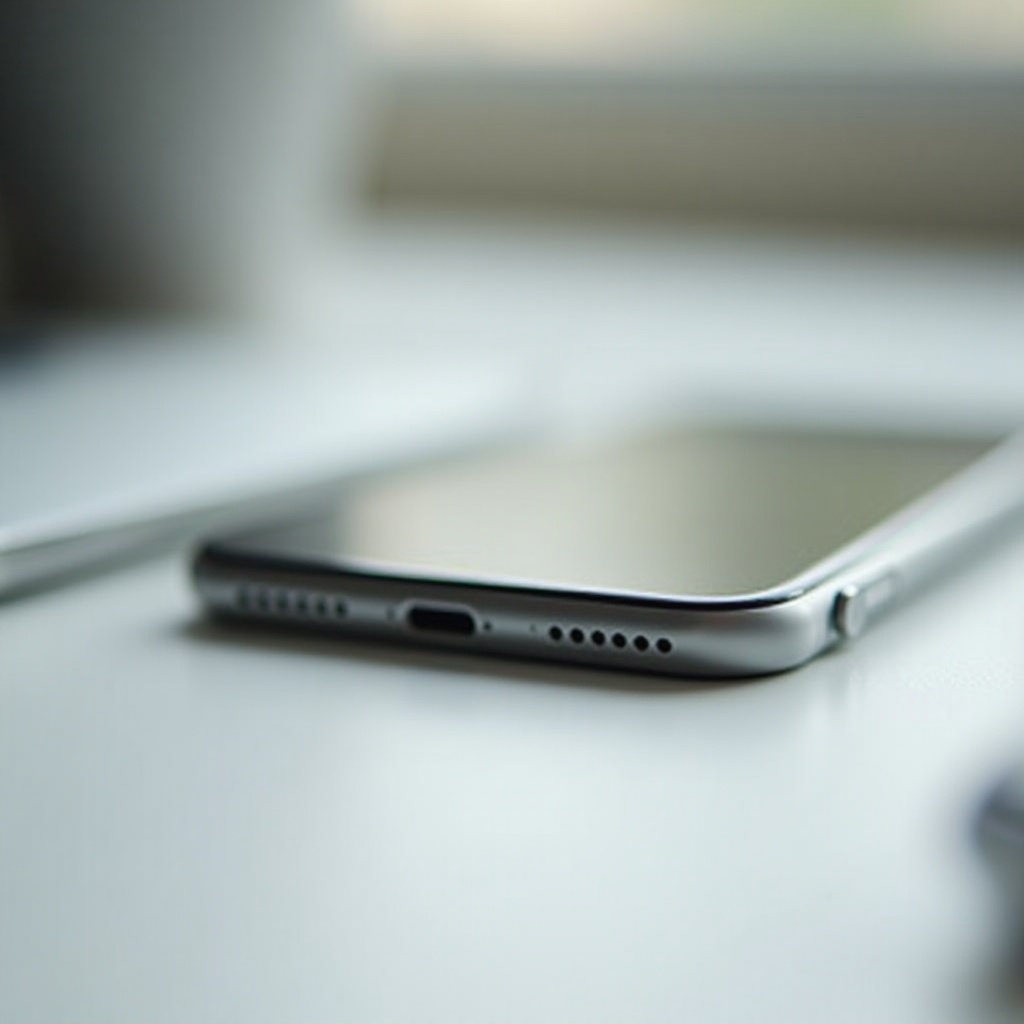
- iPhone X and Later Models: On these models, the button is on the right side of the phone, allowing for effortless single-hand operation.
- iPhone 6 to iPhone 8 Models: The right-side placement continues here, marking a shift in design for improved accessibility and functionality.
- iPhone 5 and Earlier Models: Found at the top right, this traditional positioning reflects earlier design choices, aligning with older usage habits.
Understanding the placement on different models helps refine your iPhone use, smoothly integrating design changes into routine activities.
Practical Uses of the Wake/Sleep Button
This button is integral to everyday iPhone usage:
- Locking and Unlocking the Screen: Simple presses lock your screen and prevent accidental taps, conserving both battery and privacy.
- Powering On/Off: Press and hold the button to turn your device on or off, especially helpful for troubleshooting errors.
- Performing a Force Restart: If your phone becomes unresponsive, conduct a force restart by quickly pressing and releasing the Volume Up, then the Volume Down, and pressing and holding the Wake/Sleep button until the Apple logo appears.
Understanding these integrated uses enhance your control over your device, ensuring a seamless user experience.
Enhancing iPhone Functionality Using the Wake/Sleep Button
The Wake/Sleep button’s utility extends beyond the basics. Consider these additional features:
- Accessibility Shortcuts: Triple press to gain quick access to tools such as AssistiveTouch or VoiceOver. This customization adapts the interface to personal needs, enhancing user experience.
- Enabling SOS and Other Features: Quickly activate emergency services by rapidly pressing the button. This is an invaluable safety feature embedded within the button’s utilities.
These additional functionalities highlight the importance of mastering your device’s hardware, elevating the convenience and safety of iPhone usage.
Troubleshooting Wake/Sleep Button Issues
Despite its durability, you might face issues with the button. Here’s how to troubleshoot:
- Common Problems: If the button doesn’t respond, perform a software update. Many minor glitches resolve post-update.
- When to Get Professional Help: Persistent problems may need a visit to an Apple Service Provider. Professional evaluation ensures accurate resolution.
Prompt troubleshooting extends your device’s lifespan, maintaining consistent utility and ensuring it runs smoothly.
Conclusion
Knowing where the Wake/Sleep button is and understanding its functions enhance your iPhone’s utility. These insights help manage common issues while uncovering the device’s full potential, ensuring you enjoy a seamless experience.
Frequently Asked Questions
What do I do if my Wake/Sleep button is not responding?
Ensure your device is updated with the latest iOS. If it remains unresponsive, consider a force restart or consult an Apple technician for repairs.
Can I customize the functionalities of the Wake/Sleep button?
Yes, under accessibility settings, you can assign functions like AssistiveTouch or VoiceOver to the button for quick activation.
Does the Wake/Sleep button function differently on newer iPhone models?
While the core functions remain the same, newer models integrate the button with advanced features like Face ID and emergency SOS more seamlessly.